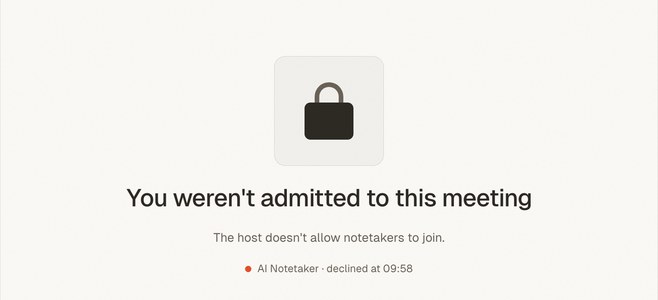

Short answer: You can record a Google Meet without inviting a bot by capturing the meeting locally in your own browser. A meeting-recorder browser extension like meaty records the call right in your browser, so nothing extra appears in the participant list and no host setting is involved — it works even on free Meet. One rule stands: tell people you're recording.
That "tell people" part isn't a throwaway line — we'll cover it properly below, because "no host permission needed" is a technical statement, not an ethical license. First, the lay of the land.
The three real ways to record a Google Meet
Every method you'll find online is one of these three. Each has genuine constraints that vendor blog posts tend to gloss over:
| Native Meet recording | Bot notetaker | Local browser capture | |
|---|---|---|---|
| Works on free Meet | No — paid Workspace/Google One only | Yes | Yes |
| Needs host permission | Yes — host must have the feature and rights gate who can start it | Yes — the bot must be admitted to the call | No |
| Visible to participants | Yes — everyone gets a recording notification | Yes — bot appears in the roster | Not automatically — you must disclose it yourself |
| Can admins block it | It's their feature to enable or not | Increasingly, yes | Only via device policy on your machine |
| What you get | Video file in the organizer's Drive | Transcript + summary in the vendor's cloud | Local recording, transcript, summary, action items |
| Extra software for others | None | None | None — it runs only on your machine |
Let's take each one honestly.
Before anything else: recording without permission ≠ recording without consent
This deserves its own section, up front. Local capture removes the technical gatekeepers — no host toggle, no bot to admit. It does not remove the legal and ethical ones:
- Recording-consent laws still apply. In one-party consent jurisdictions, your own consent as a participant may be legally sufficient. In all-party consent jurisdictions (including several US states, such as California, and much of Europe under stricter interpretations), everyone on the call must agree. The law that applies depends on where participants are, not just where you are — which on a video call you often don't know. When in doubt, get consent from everyone.
- Your employer's and the host's policies apply too. If your company or the meeting organizer prohibits recording, a browser extension doesn't exempt you. Getting kicked out of a client relationship over a covert recording costs more than any transcript is worth.
- The simple fix is the best one: say "I'd like to record this so I can send everyone notes — any objection?" at the start. In years of meetings, almost nobody objects to notes. What people object to is finding out later.
meaty is built for the person who takes notes openly, not for surveillance. If your plan requires that nobody knows, don't do it.
Option 1: Google Meet's native recording (and why most people can't use it)
Google Meet has a built-in Record meeting feature, but it's gated twice — by plan and by role.
By plan: as of August 2026, recording is only included in paid editions — Business Standard, Business Plus, Essentials, Enterprise Essentials/Standard/Plus, Education Plus, the Teaching and Learning Upgrade, and Google One plans with 2 TB+ storage, per Google's own support page. Free personal Google accounts cannot record at all. There is no setting to flip; the button simply isn't there.
By role: even on an eligible plan, you can generally only record if you're the host, a promoted co-host, or from the host's organization with Host Management off. Google is explicit about the ceiling: "Even if you have the necessary permissions, you can't record a meeting if the host doesn't have them." So if you're an external guest, or your client runs the meeting on a plan without recording, native recording is off the table for you — full stop.
When it works, it's clean: everyone gets notified, and the video lands in the organizer's Google Drive. If you're the host on the right plan and you want a video file, use it. Everyone else reads on.
Option 2: Bot notetakers — a visible guest that needs to be let in
Tools like Otter, Fireflies, tl;dv, and Fathom record Meet by sending a bot into the call as a participant. That solves the plan problem (bots work on free Meet), but it introduces new gatekeepers:
- The bot must be admitted. It shows up in the join queue like any guest — Fireflies' own setup guide walks hosts through clicking Admit for its notetaker, and notes Google Meet now flags such bots under a "with potential risks" warning. If nobody admits it (Fireflies' bot gives up after about 10 minutes in the lobby), you get no recording.
- It's visible the whole call. "Fireflies Notetaker" sitting in the roster changes the room. Some meetings that's fine; some clients quietly dislike it.
- Admins increasingly block them. Workspace admins can restrict who joins meetings, and many organizations now reject third-party bots by policy. Your recording strategy then depends on someone else's IT settings.
Bots are a legitimate choice when your whole team adopts one and hosts expect it. We've compared that model in depth in our guide to AI notetaker alternatives. But if you're a guest, a freelancer, or dealing with bot-hostile hosts, you need the third option.
Option 3: Local browser capture — no bot, no host setting, no premium plan
The third method skips the meeting infrastructure entirely: your own browser records the audio coming out of the Meet tab, optionally mixed with your microphone so both sides of the conversation are captured. Nothing joins the call. Nothing appears in the participant list. No host setting is consulted, because from Meet's perspective nothing is happening — you're just a participant whose computer is, as always, playing the meeting audio.
This works on the free Meet tier, as an external guest, in calls hosted by other companies — anywhere you can legitimately be in the meeting and hear it.
The honest constraints, because every method has them:
- It records what you can hear. If your connection drops or the host removes you from the call, your recording ends there too. There's no server-side copy quietly continuing without you.
- It runs on your machine. Your browser has to stay open for the duration (a side panel keeps recording while you switch tabs, but closing the browser stops it).
- Disclosure is on you. Native recording notifies everyone automatically; a bot announces itself by existing. With local capture, you are the notification. Say it out loud.
How to record a Google Meet with meaty (step by step)
Here's the concrete walkthrough with meaty's Chrome extension:
- Install the extension from the Chrome Web Store and sign in to meaty. It's free to start — 120 transcription minutes per month on the free tier.
- Join your Google Meet call as you normally would, in a Chrome tab.
- Open the meaty side panel and tap record. The panel shows exactly what it's about to capture — "Will capture: your Meet tab" — so you're never recording the wrong tab by accident. Enable your mic in the panel if you want your own voice mixed in with the other participants' audio (you usually do).
- Tell the room. "I'm recording this for notes — everyone okay with that?" Then have the meeting. The side panel keeps recording even if you switch tabs to look something up.
- Stop when the call ends. meaty transcribes the audio and returns a speaker-labeled transcript, a summary, and an action-item list — notes ready to paste into your follow-up email minutes after you hang up.
No premium Workspace plan, no admin request, no bot waiting in the lobby. And because meaty records audio from whatever it can hear, the same tool covers your meetings that never had a link at all — recorded from your phone in the room.
Which method should you actually use?
- You're the host on a paid Workspace plan and want a video file: use native recording. It's built in and notifies everyone. (Same logic as Zoom's cloud recording — great if you're the one holding the keys.)
- Your whole team runs on a bot notetaker and hosts expect it: keep the bot.
- You're a guest, on free Meet, or in meetings where bots get blocked or feel intrusive: local browser capture is the method that always works — paired with a spoken heads-up at the start.
And if the deeper problem is that Meet itself isn't fitting how your team meets, we've written a broader look at Google Meet alternatives.
Frequently asked questions
Can I record a Google Meet without the host knowing?
Can you record a Google Meet on a free account?
Do AI notetaker bots need to be admitted to a Google Meet?
Does local capture record both sides of the conversation?
What happens to my recording if I get removed from the call?
The bottom line
Recording a Google Meet without a bot isn't a hack — it's just recording locally, the way people have recorded calls forever, with transcription and summaries layered on top. Native recording is fine if you're a host on the right plan; bots are fine if hosts welcome them. For everyone else, a side-panel capture with an honest "I'm recording this for notes" is the method that works on any Meet, any plan, any host.
Try meaty free — install the Chrome extension, record your next Meet with one tap, and get the transcript, summary, and action items the moment you hang up. 120 free minutes a month, no bot required.