
Short answer: Zoom cloud recording is a paid-plan feature. Only the host or a co-host with a licensed (Pro, Business, Education, or Enterprise) account can record to the cloud; recordings land in Recordings & Transcripts in the Zoom web portal after processing; Pro and Business plans pool 10 GB of storage per license (15 GB on Business Plus); and recordings are kept until you — or your admin's retention policy — delete them, with a 30-day trash window after that.
This guide answers the practical questions first — which plans include it, where recordings go, storage limits, retention, and how to download your files — then covers where a recording alone falls short and what to use instead.
Which Zoom plans include cloud recording?
Zoom's own prerequisites are a licensed user on a Pro, Business, or Enterprise account with cloud recording enabled in settings — and inside the meeting, only the host or a co-host can start it (as of July 2026, per Zoom's cloud recording guide). Free (Basic) accounts don't get cloud recording at all; they can only record locally to a computer from the desktop app.
Two practical consequences:
- Participants can't record to the cloud. If you're not the host or a co-host, you're dependent on someone else pressing record — or you need your own capture method.
- A license doesn't guarantee the button. Admins can disable or lock cloud recording account-wide, so check your settings at zoom.us before an important meeting, not during it.
Where do Zoom cloud recordings go?
The host starts it in-meeting via Record → Record to the Cloud. After the meeting ends, Zoom processes the files — typically about twice the recorded duration, occasionally up to 24 hours (as of July 2026, per Zoom's guide) — and they appear under Recordings & Transcripts → Cloud recordings in the Zoom web portal. From there, the host can view, download, delete, or share the recording link, subject to admin controls.
Cloud recording is especially helpful when you need to preserve the visual context of a meeting. If someone walks through a deck, shares a product demo, presents a spreadsheet, or explains a design on screen, a video replay can be valuable. It gives people who missed the meeting a way to see what happened, not just read about it.
Zoom cloud recording can also be configured to create different outputs. Availability depends on your plan, account type, and admin settings, but these are the common pieces teams expect:
| Recording output | What it helps with | Practical caveat |
|---|---|---|
| Video recording | Rewatching presentations, demos, and screen shares | Long recordings are time-consuming to review |
| Audio file | Listening back without video | You still need to extract decisions and next steps |
| Chat file | Saving links and written comments | Chat often misses the real spoken context |
| Transcript | Searching or skimming the conversation | Accuracy depends on audio quality, language support, and settings |
| Share link | Sending the recording to teammates or clients | Permissions, passcodes, and expiration policies can get in the way |
Cloud recording behavior as of July 2026. Plans, limits, and settings change — check zoom.us for the latest.
For a standard remote meeting, this is often enough. Someone records the call, Zoom stores the files, and the team has a link for later. The trouble starts when "later" means more than "watch the entire meeting again."
Zoom cloud storage limits by plan
Every paid plan below Enterprise has a storage cap, and it's smaller than most teams expect once they record regularly:
| Plan | Included cloud recording storage |
|---|---|
| Free (Basic) | None — local recording only |
| Pro / Business | 10 GB per licensed user |
| Business Plus | 15 GB per licensed user |
| Enterprise | Unlimited |
As of July 2026, per Zoom's storage capacity page. Education plans range from 0.5 GB per license to unlimited depending on tier.
Storage is pooled at the account level — Zoom's example: a Business account with 10 licensed users shares 100 GB across the whole account. When you hit the cap, a recording already in progress runs to the end, but you can't start new cloud recordings until you free up space; existing recordings stay accessible, and billing admins get an alert at 80% capacity (as of July 2026, per Zoom's usage-limit guidance). Extra storage is sold in monthly tiers, from $10/month for 1 GB up to $500/month for 5 TB.
How long does Zoom keep cloud recordings? (Retention)
Three rules cover almost every retention question (as of July 2026):
- There is no default expiry from Zoom itself. Recordings stay until someone deletes them or the account runs out of storage. Auto-deletion is an optional policy admins can turn on, deleting recordings after a set number of days (Zoom's own management guidance suggests it, noting recordings are rarely viewed after 30 days).
- Your organization may have set its own clock. Companies and universities commonly configure auto-deletion at 90, 150, or 180 days. If your recordings "disappear", this is usually why — ask your admin what the policy is before you rely on a recording long-term.
- Deleted recordings sit in the trash for about 30 days. You can typically recover a deleted cloud recording within 30 days via Recordings & Transcripts → Trash → Recover in the web portal; after that it's permanently gone (as of July 2026, per Zoom's recovery article — admin settings can shorten or remove the trash window).
How to download a Zoom cloud recording
- Sign in to the Zoom web portal (the website, not the desktop app).
- In the navigation menu, click Recordings & Transcripts, then the Cloud recordings tab (as of July 2026, per Zoom's guide to finding recordings).
- Click the meeting topic you want, then click Download — Zoom saves the set of files (video, audio-only, transcript, and chat, depending on your settings).
Two caveats: only the host (or an admin) can download by default — viewers of a shared link can only download if the host allowed it — and if the recording was already deleted, recover it from the Trash tab first.
Why teams like Zoom cloud recording
The biggest advantage of Zoom cloud recording is convenience. If your team already uses Zoom, there is no new app to introduce for basic video capture. The recording lives in the same ecosystem as the meeting, which makes it easier for hosts and admins to manage.
It is also useful for accountability. If a customer asks what was promised, a manager wants to review a training session, or a teammate missed a decision, the recording provides a source of truth. This can reduce confusion, especially in distributed teams where not everyone can attend live.
Zoom cloud recording also helps with asynchronous work. A product demo, lecture, all-hands meeting, or customer onboarding session can be shared after the fact. People can catch up when their schedules allow, which is a real benefit for global teams.
The feature works best when the meeting is formal, scheduled, and visual. In other words, Zoom cloud recording is strongest when Zoom itself is the room where the important conversation happens.
Where Zoom cloud recording falls short
It only captures what happens inside Zoom
This is the most obvious limitation, but it is also the most important. Zoom cloud recording does not capture the hallway conversation after the call, the in-person client meeting, the phone discussion, the conference booth conversation, or the quick decision made over coffee.
For many professionals, the most important details do not happen in a perfectly scheduled Zoom room. Consultants meet clients in person. Journalists interview sources in the field. Students record study sessions. Founders pitch investors at events. Sales teams debrief after the video call ends.
If the conversation does not happen in Zoom, Zoom cloud recording is not a reliable capture method. For those situations, a phone-based workflow is usually more natural. If you need to capture conversations away from your laptop, this guide on how to record a meeting on your phone walks through the practical options for iPhone and Android.
A recording is not the same as a usable summary
A 58-minute recording may be complete, but it is not necessarily useful. Most people do not want to watch an entire meeting again just to find one decision, one objection, or one promised follow-up.
This is where teams often confuse storage with knowledge. Zoom can preserve the meeting, but the burden is still on someone to review it, interpret it, and turn it into something actionable. A raw recording answers "what happened?" only if someone has time to dig through it.
A better meeting memory system should help answer more specific questions:
- What decisions were made?
- Who owns each next step?
- What did the client actually object to?
- Which topic took the most discussion?
- Where did we leave something unresolved?
Zoom cloud recording may help you reconstruct those answers, but it does not always deliver them in the format your team needs.
Transcription depends on settings and audio quality
Zoom can provide transcripts for cloud recordings when audio transcription is enabled and supported for the account. That can be useful, especially for searching a meeting after it has been processed.
However, transcription quality is never just about software. It also depends on microphone quality, overlapping speakers, background noise, accents, language support, and whether participants join from separate devices. If three people speak through one conference room microphone, speaker attribution can be much harder than in a meeting where every person has their own audio channel.
That matters because a transcript without reliable speaker context can still create work. You may see the words, but not always who said them, why they mattered, or whether they became a commitment.
Cloud storage and retention can create surprises
Zoom cloud recordings live inside your Zoom account environment, which means they are affected by plan limits, admin policies, storage rules, and retention settings. In some organizations, recordings may be deleted after a certain period. In others, storage limits can force teams to clean up old recordings or download files elsewhere.
This is not necessarily a flaw. For compliance and security, centralized controls can be a benefit. But it does mean you should not assume a Zoom cloud recording will be available forever.
If a recording contains a critical decision, customer commitment, interview quote, or legal-sensitive discussion, the team needs a clear process for what happens after the recording is processed. Who owns it? Where is the transcript saved? How are action items tracked? What happens if the Zoom link expires or the recording is deleted?
Sharing a link does not guarantee alignment
Zoom makes it easy to share a recording link, but sharing a link is not the same as transferring understanding. A teammate might not watch the recording. A client might skip to the wrong section. A stakeholder might miss the nuance behind a decision.
The most effective meeting follow-up usually includes a concise summary, clear action items, and a searchable transcript. The recording can be there as backup, but it should not be the only artifact.
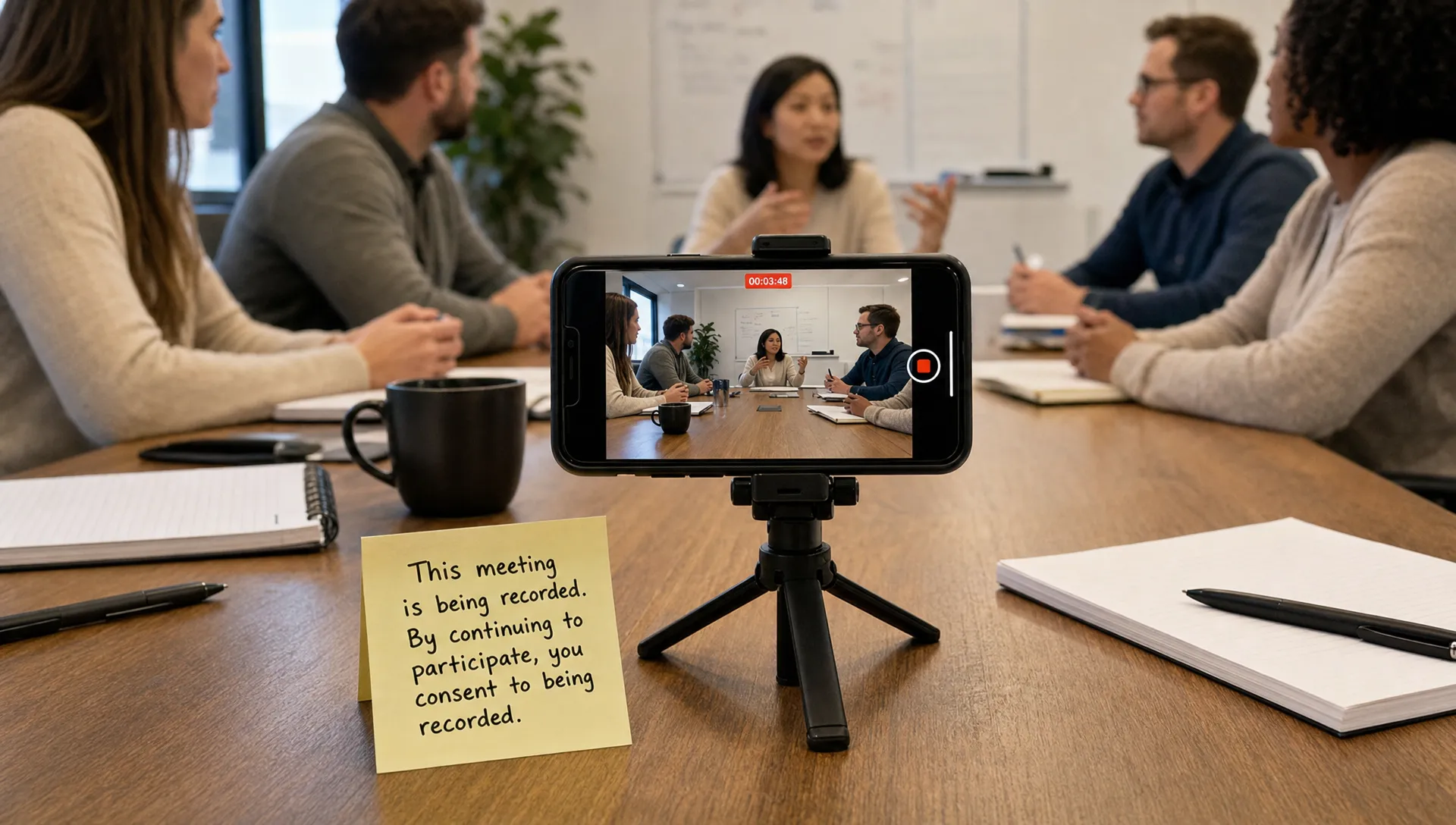
Zoom cloud recording vs. a phone-based AI meeting recorder
Zoom cloud recording and an AI meeting recorder are not always direct competitors. They solve overlapping but different problems. Zoom is built around video meetings. A tool like meaty is built around capturing conversations from your phone, transcribing them with speaker labels, and turning them into summaries and action items.
Here is the practical difference:
| Use case | Zoom cloud recording | Phone-based AI recorder like meaty |
|---|---|---|
| Remote Zoom meeting with screen share | Strong fit | Can complement if you need separate notes or follow-up capture |
| In-person meeting | Not ideal unless the meeting is also running through Zoom | Designed for one-tap conversation capture from a phone |
| Quick conversation after a call | Usually missed | Easy to capture on the spot |
| Reviewing decisions later | Possible, but often requires watching or searching | Built around transcripts, summaries, and action items |
| Sharing outcomes | Recording links can be shared | Summary and action items are ready to send the moment you stop |
| Finding old discussions | Depends on Zoom organization and retention | Speaker-labeled, timestamped transcripts you can search |
The key question is not "Which tool records?" Both can record in their own context. The better question is "Where do your important conversations actually happen?"
If they happen in scheduled Zoom meetings, Zoom cloud recording is valuable. If they happen across rooms, phones, client sites, field interviews, and informal follow-ups, you need something more flexible.
When Zoom cloud recording is enough
Zoom cloud recording is usually enough when the meeting is primarily visual and the video itself is the artifact. Examples include webinars, training sessions, product demos, lectures, and screen-share walkthroughs. In those cases, the replay matters because the visual sequence matters.
It is also a good fit when your organization already has strong Zoom admin policies, clear retention rules, and a follow-up process that turns recordings into notes. If someone reliably writes summaries, logs decisions, and updates project tools, Zoom can serve as the archive behind that process.
The feature is less compelling when the recording becomes a dumping ground. If your team records everything but rarely reviews anything, the cloud archive may create the feeling of documentation without actually improving alignment.
When you need more than Zoom cloud recording
You probably need more than Zoom cloud recording if your meetings are decision-heavy, fast-moving, or frequently offline. The more your team depends on accurate follow-up, the more valuable summaries and action items you never lose become.
This is especially true for roles where missing a detail has real consequences. A consultant needs to remember what the client approved. A recruiter needs to capture candidate nuance. A journalist needs a reliable interview record. A student needs searchable lecture or study notes. A founder needs to remember investor feedback after back-to-back conversations.
In those cases, the most useful output is not a video file. It is a clean record of what was said, what mattered, and what needs to happen next.
A good workflow can still include Zoom. For example, record the formal video meeting in Zoom when screen content matters. Then use a phone-based AI recorder for the in-person debrief, follow-up discussion, or client conversation that happens outside Zoom. This gives you both the visual record and the conversational memory.
A practical decision checklist
Before relying on Zoom cloud recording as your main meeting documentation system, ask a few simple questions:
- Does every important conversation happen inside Zoom?
- Do we need video replay, or do we mostly need decisions and action items?
- Who is responsible for turning recordings into usable notes?
- Are our retention and storage settings clear enough for long-term reference?
- Can we easily search across past conversations?
- Do we have a plan for in-person or mobile conversations?
If most answers point back to video replay, Zoom cloud recording may be the right core tool. If most answers point to memory, accountability, and follow-up, you should pair it with a dedicated AI meeting recorder.
Best practices if you keep using Zoom cloud recording
If Zoom remains part of your workflow, a few habits can make cloud recordings more useful.
First, decide before the meeting whether it should be recorded. Do not rely on memory once the conversation starts. Make sure participants are aware of the recording and follow the consent rules that apply in your location and organization.
Second, configure recording settings before you need them. Check whether cloud recording, audio transcription, chat saving, and screen-share recording are enabled for your account. Waiting until after an important meeting is too late.
Third, create a post-meeting routine. Rename recordings clearly, save important transcripts or summaries where your team can find them, and extract action items while the context is fresh.
Finally, avoid treating the recording link as the final deliverable. Send notes people actually read first, then include the recording as backup. People align faster when they receive the decision, the owner, and the deadline without having to scrub through a full replay.
Frequently asked questions
Is Zoom cloud recording free?
Does Zoom cloud recording automatically create a transcript?
Can participants access a Zoom cloud recording?
Is Zoom cloud recording good for in-person meetings?
How long does Zoom keep cloud recordings?
Capture the conversation, not just the call
Zoom cloud recording is a useful way to preserve Zoom meetings, but it is not a complete meeting memory system. It works best for video replay. It falls short when you need searchable conversations, clear summaries, action items, and capture beyond the Zoom room.
If your important discussions happen in person, on the move, or across multiple contexts, meaty records the conversation straight from your phone, transcribes it with speaker labels, generates a summary and action items automatically, and gives you a timestamped transcript you can search and share. For calls you take at your desk, meaty's Chrome extension records the tab's audio right in the browser — no bot in the call, no host permission, no paid Zoom plan. It is free to start, so you can use Zoom for video when you need it and meaty for the conversations you cannot afford to lose.